Set a common comparison baseline
A useful baseline fixes the building geometry, opening dimensions, product choices and viewing conditions. Give each alternative a clear name so a later screenshot still identifies the design being discussed. Our comparison uses the authored Sonoran Courtyard demonstration house, not an AI reconstruction of a real property.
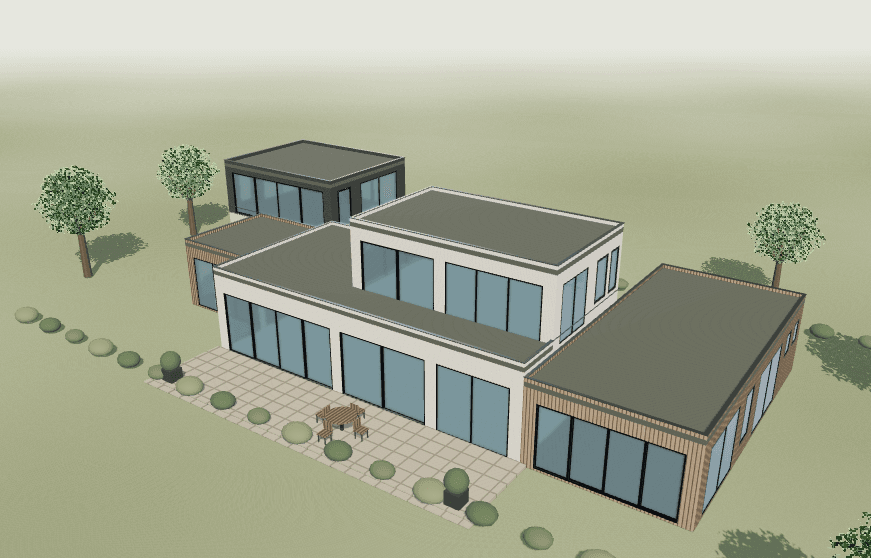
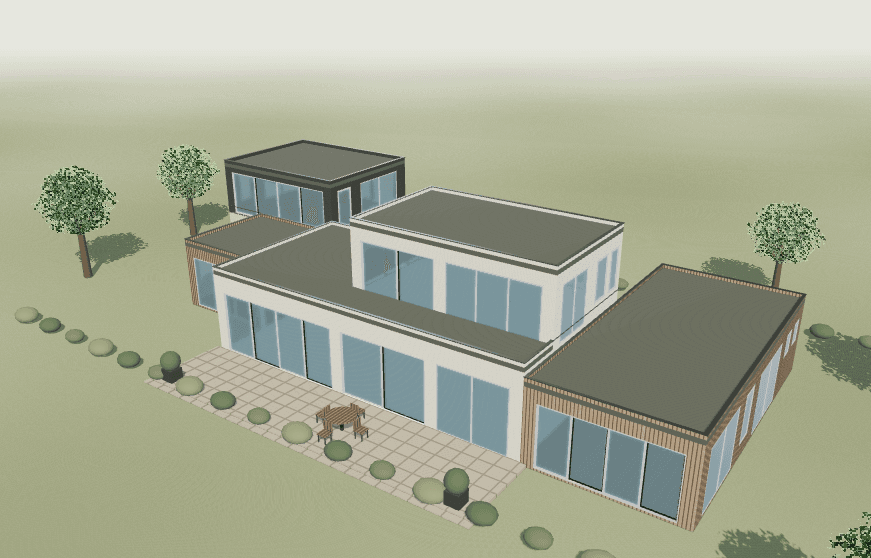
Actual Save image exports from the authored demonstration house. Geometry, opening layouts, products, interior finishes, camera and lighting were retained. Screen references, not physical finish samples.
The pair changes the resolved exterior finish on 40 placed openings from the black reference to the white reference. Two garage openings remain context only. The downloaded project confirms unchanged building geometry, opening trees, product choices and interior finishes. These numbers describe this demonstration, not every project or batch operation.
Create a variant and change one variable
- Open the editable example. Expand Alternatives and comparison and inspect Design alternative.
- Keep Original as a baseline. Use the existing editable alternative or Create alternative, then give it a descriptive name.
- Change one variable, such as the exterior frame finish using Try white frames. Inspect the proposed change and skip counts.
- Select Original under Compare with. Use the same named view and lighting when reviewing or saving images.
Changing color and subdivision together makes it harder to identify which choice caused the visual difference. Explore black and white finishes first, then make a separate decorative-grid comparison if needed.
The comparison is visual. It does not calculate a price difference, certify a product or establish that a preferred appearance is available from a selected supplier.
Review unchanged dimensions and skipped targets
Check the active alternative, selected opening and schedule after a change. Confirm that dimensions and operation remain as intended. Read any rejection message: a change that was not applied cannot be presented as an accepted alternative.
| Decision | Keep visible | Confirm separately |
|---|---|---|
| Finish | Same dimensions, layout, camera and lighting | Color availability and physical sample |
| Decorative bars | Same opening and structural divisions | Bar construction, width and glass build-up |
| Product or operation | Identity and explicit size basis | Compatibility, technical data and manufacturing review |
A skipped item is not a failed color sample or an invisible product approval. It stays outside that batch change for the reason shown in the interface. Check the listed targets instead of assuming that whole-house means every visible object.
Save the alternatives for review
Save project stores the current project in this browser. For a portable backup, expand Project files and actions and use Download project to obtain the JSON file. Keep source PDFs separately. Use Save image to capture a view and Download schedule (CSV) to inspect the active design brief.
Reopen a downloaded project to verify the alternatives before handing off a decision. An image records appearance; it does not preserve an editable project by itself. No share link or automatic supplier delivery is implied.
Record the preferred alternative and unresolved product questions in the schedule template. Use the review checklist when a variant contains imported geometry or unresolved source information.