Fenestry helps turn architectural PDFs into a preliminary editable house and opening schedule. Check the result against the drawings, refine windows and doors, and keep unresolved items visible when preparing a supplier brief.
Public preview. No account required. Optional cloud AI import depends on pilot availability and your consent. Manual PDF tools remain available. Results need human review.
What does a window takeoff include?
A window takeoff identifies the openings represented in a drawing set and records the information needed to discuss their scope. It is a quantity and specification task. An estimate adds costs; a manufacturing order requires approved product and installation details. These are different outputs.
Start with the opening marks, quantities, dimensions and source references. Then record the opening type, operation, selected finish and unresolved questions. A product name alone does not establish that the dimensions or configuration are supported.
| Record | Why it belongs in the brief | What to check |
|---|---|---|
| Opening mark and quantity | Connect the physical opening to its drawing references. | A repeat view is not another unit. |
| Width, height and units | Keep the nominal geometry explicit. | Identify whether the number means rough opening or frame size. |
| Type and operation | Separate fixed glazing, windows and door categories. | Unknown operation must stay unresolved. |
| System and appearance | Record the intended product reference and visual choices. | Check configuration compatibility and physical samples. |
| Source and review notes | Show where information came from and what still needs a decision. | Use the correct drawing revision. |
If the schedule is unfamiliar, start with how to read window marks, sizes and quantities. You can also use the blank supplier-review template without uploading a drawing.
Which drawing pages should you prepare?
Keep plans, elevations, sections and schedules together, with their revision information. Each view answers a different question. The current AI workflow analyzes a selected set of up to six page images, rather than promising to analyze every page in a large document.
| Drawing role | Useful information | Common review question |
|---|---|---|
| Floor plan | Building layout, opening location and marks. | Is this the same opening shown on the elevation? |
| Elevation | Opening arrangement and vertical relationships. | Are the width, sill and top levels explicit? |
| Section | Levels, heights and relationships between building parts. | Which datum does this dimension use? |
| Window / door schedule | Types, nominal sizes, quantities and specification notes. | Does this revision agree with the other drawings? |
Review the selected pages before starting AI analysis. Pages outside that selection still need attention. Do not treat a successful response as confirmation that the complete set has been checked. Only submit drawings you are authorized to process through the optional cloud service.
From PDF plans to editable openings
- Open the architectural PDF. Inspect the drawing set and page selection. Choose cloud AI analysis explicitly if the pilot is available, or continue with the manual drawing tools.
- Review the preliminary model. AI proposes building geometry and openings, with source references and uncertainties. Select an opening to inspect its dimensions, type and location. A model is a starting point for review, not a measured survey.
- Refine the window and door choices. Explore available system references, finishes and layouts, then keep alternatives for discussion. A visual change does not verify fabrication limits or certified performance.
- Export the brief. Download the project file and preliminary CSV. Check both placed openings and unresolved source items before using the result with a supplier.
What needs human review before supplier use?
Coverage, identity, dimensions, operation and product compatibility all need checking. An opening placed in the model is not automatically confirmed by the source drawings.
- Compare the analyzed-page list with the complete drawing set. Review omitted pages separately.
- Trace the same opening across plans, elevations and schedule rows. Avoid counting one opening once per view.
- Check written dimensions and their size basis. A rough opening is not interchangeable with a finished window frame.
- Resolve unknown opening types, operation and view conventions. Do not turn an inferred value into an approved fact merely because it looks plausible.
- Ask the supplier to confirm the selected product, configuration, hardware, installation requirements and applicable performance evidence.
Fenestry keeps unresolved AI proposals, schedule types not assigned to model openings, and pages outside AI analysis separate from placed quantities. The presence of those sections helps review; an empty section is not proof that the model is complete.
Inspect an actual takeoff before uploading
The download below is generated from the same authored example model and export function used by the application. It contains the current preliminary design brief and its import-review sections. It is a software-output example, not an approved window order.
Download actual demo takeoff CSV ↓The CSV contains opening types, explicit millimetre dimensions, dimension meaning, system references, appearance choices and review notes. It also separates context-only objects from the window and door quantities. The project file preserves the editable model locally; it is not cloud account storage.
The simpler blank template is a separate planning resource with its own fields. It is not a copy of the application export format and is not an import file for Fenestry.
Use the result as a starting point for a supplier brief
For a homeowner or designer, the brief makes choices and unanswered questions easier to discuss before requesting prices. For a dealer or importer, it offers an editable starting point for reviewing the drawing set with the project team. In both cases, the source drawings and the responsible reviewers remain essential.
Fenestry does not currently provide automatic quotations, supplier matching, checkout, cloud collaboration or manufacturing approval. A named catalog system is a reference, not a declaration of partnership or proof that every configuration has complete production data. See the current dealer and importer workflow for the B2B scope.
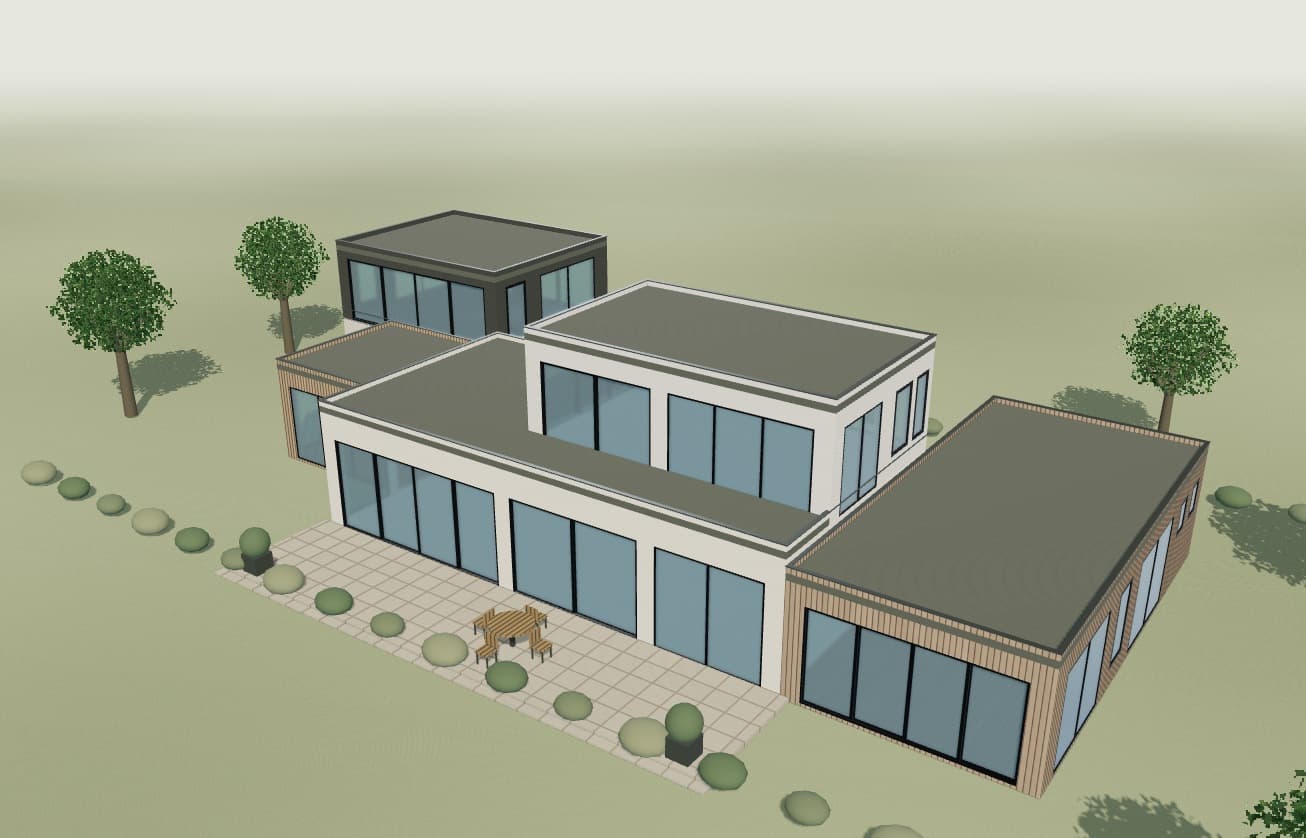
Explore the editable example, then bring your own plans.
Open the example house